![Clear-Impact-Logo-Wide-Tagline-RGB.png]](https://support.clearimpact.com/hs-fs/hubfs/images/Clear-Impact-Logo-Wide-Tagline-RGB.png?height=40&name=Clear-Impact-Logo-Wide-Tagline-RGB.png)
Overview
The Compylation Reports Release is designed to improve the calculation building experience and make it easier to communicate results with key stakeholders. One or more calculations can now be combined into a PDF report export that can include a range of report template components, such as an organization branded cover page. The resulting point-in-time summary can be shared as a PDF or a link.
New & Enhanced Features
-
Expanded Compylation Editor Experience
-
Multi-calculation Report Publishing
-
Published Reports List
-
Report Templates
-
Survey Instance Report - PDF Print
-
Assorted Remedies
📊Compylation Reports Release Schedule📊
Release Date: Wed., Feb. 4th from 9:00pm CT - 11:30pm CT.
Upgrade Training Webinars (same content, two dates)
-
Wed., Feb. 4, 2025 at 2:00pm CT - Register: https://us06web.zoom.us/meeting/register/rneos8tDRUiPreVb_XCnYA
-
Fri., Feb. 6, 2025 at 10:00 am CT - Register: https://us06web.zoom.us/meeting/register/BQZ2YD98RFu549PVl4_Weg
The Expanded Compylation Builder Interface
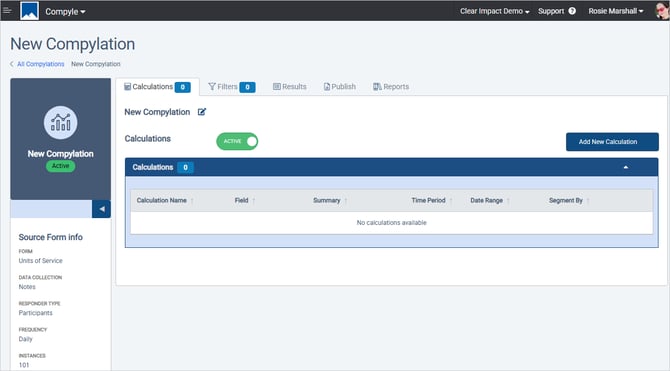
The Compylation tool now has tabs for a folder style interface with tabs for specific functions and a collapsible left info panel. This allows you to focus on specific tasks and makes room for more functionality.
Compylation Info Panel
The Compylation Info Panel provides details about the data source (form, data collection, responder type, frequency, total instances). It also shows how many Compyle-to-Scorecard Feeds have been created from the calculations in this compylation.
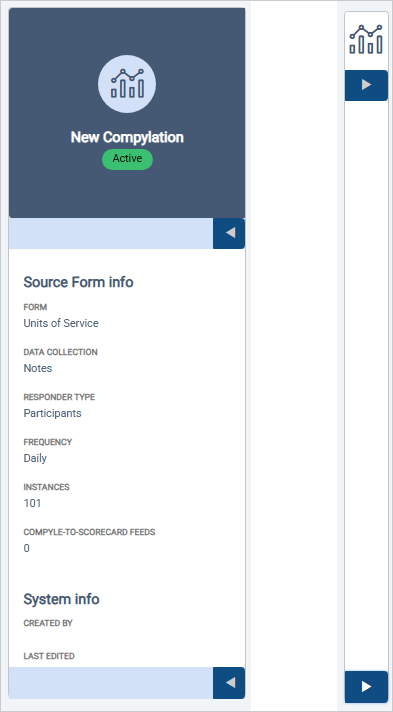 The Compylation Info Panel can closed using the ⬅️ or reopened using the ➡️.
The Calculations tab
This is where you can create, edit, copy, and archive calculations. The compylation name may be updated here as well. Each compylation must have an unique name, and within the same compylation each calculation must have a distinct name.
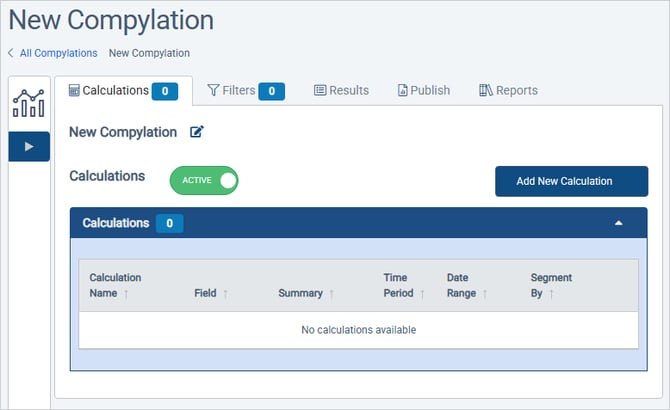
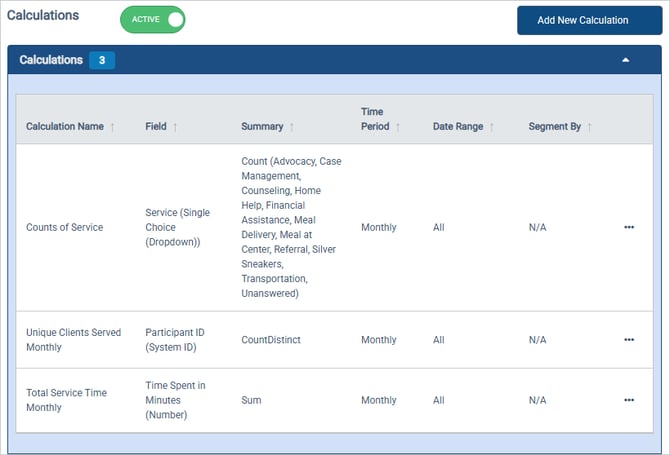
For saved calculations, a lot of information is displayed in the calculation list.
-
Calculation Name: What you called this summary
- Field: The source field(s) used in this calculation
- Summary: What math is happening
- Time Period: calculation time frame (not the source form frequency)
- Date Range: date filtering for this specific calculation
- Segment By: entity field used to disaggregate the results
- Action Menu (...): what you can do with each calculation

-
- Edit: Change the name, summary, time frame, date filters, segment by, etc
- View Results: See the calculation graph on the Results tab
- Copy: Copy this calculation to make a new calculation to edit
- Archive: Deactivate the calculation
- Delete: Remove the calculation entirely
The saved calculations list shows twenty calculations per page.
When more than twenty calculations are present, page numbers and arrow buttons will appear after the twentieth calculation so you can navigate to additional pages.
Filters tab
The Filters tab is where you can restrict the results for all calculations in this compylation. You can filter by standard or custom fields from the entity form, like the Participant form. Group assignments can also be used for filters.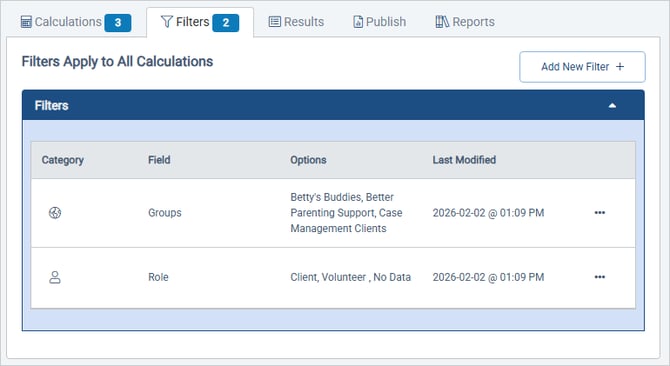
-
Category: Entity type - global, participant, organization, anonymous, or household
- Field: Data source for the filter
- Options: What criteria records have to meet for inclusion
- Last Modified: When the filter was applied
- Action Menu (...): Edit or Delete
Results tab
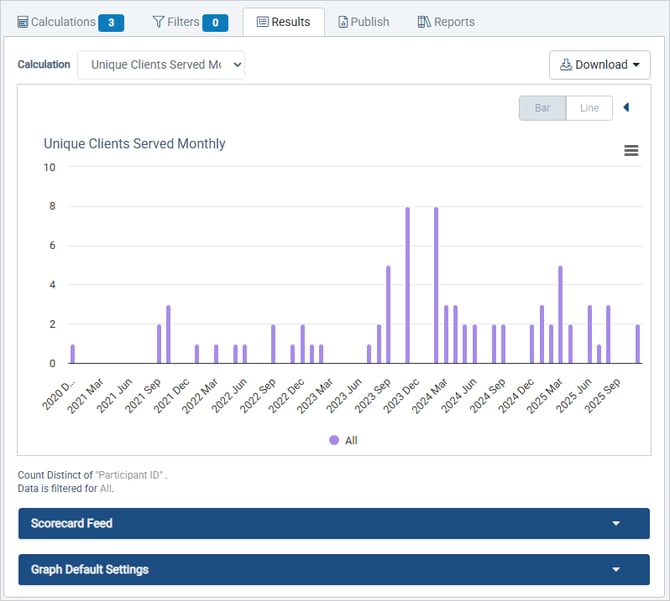
This is where you view the calculation graph and create Compyle-to-Scorecard Feeds. Only one calculation can be graphed at a time, and you can switch the calculation shown using the dropdown at the top of the tab.
Graph menus:
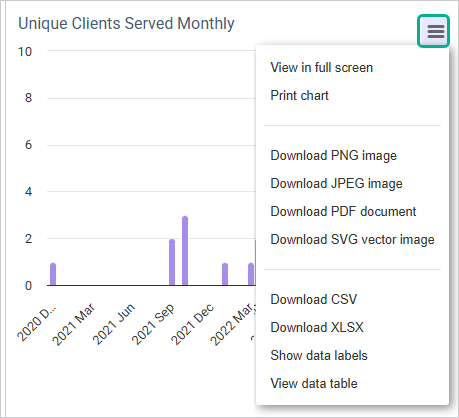
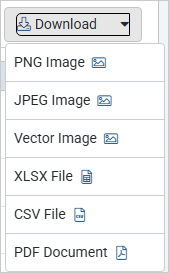
The graph settings menu (=) and the download menu provide provide options for exporting an image of the graph. Additionally, the graph settings menu lets you display the data table or the data labels for the graph, which can provide another perspective for interpreting the data.
Graph Default Settings
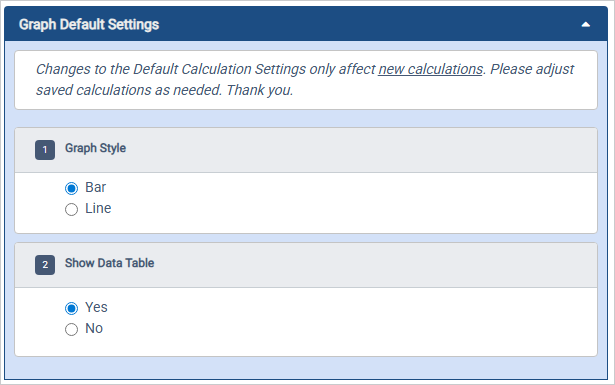
To change how graphs will appear for new calculations, you can set the graph style and choose to display the Data Table by default.
Compyle-to-Scorecard Feeds
For calculations that return a single result value for each reporting period, you will have the option to create a Compyle-to-Scorecard Feed. When a calculation cannot be used for a feed, the Create Compyle-to-Scorecard Feed button will be grayed out..
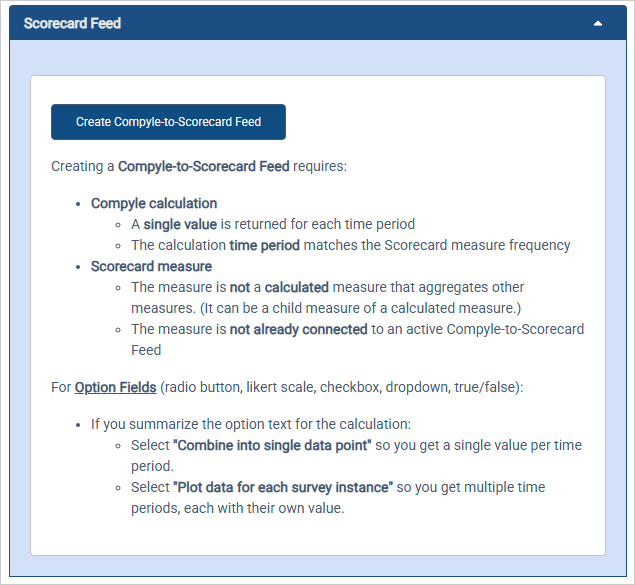
The Scorecard Feed section includes the following instructions:
Creating a Compyle-to-Scorecard Feed requires:
-
- Compyle calculation
- A single value is returned for each time period
- The calculation time period matches the Scorecard measure frequency
- Scorecard measure
- The measure is not a calculated measure that aggregates other measures. (It can be a child measure of a calculated measure.)
- The measure is not already connected to an active Compyle-to-Scorecard Feed
- Compyle calculation
For Option Fields (radio button, likert scale, checkbox, dropdown, true/false):
-
- If you summarize the option text for the calculation:
- Select "Combine into single data point" so you get a single value per time period.
- Select "Plot data for each survey instance" so you get multiple time periods, each with their own value.
- If you summarize the option text for the calculation:
Publish tab
The new Publish tab is where you create custom PDF reports where you select a layout, choose up to six calculations, enter a title, and choose report elements. This generates a point-in-time snapshot of your data, which will be available for download on the Analytics > Reports list and on the Reports tab in this compylation.
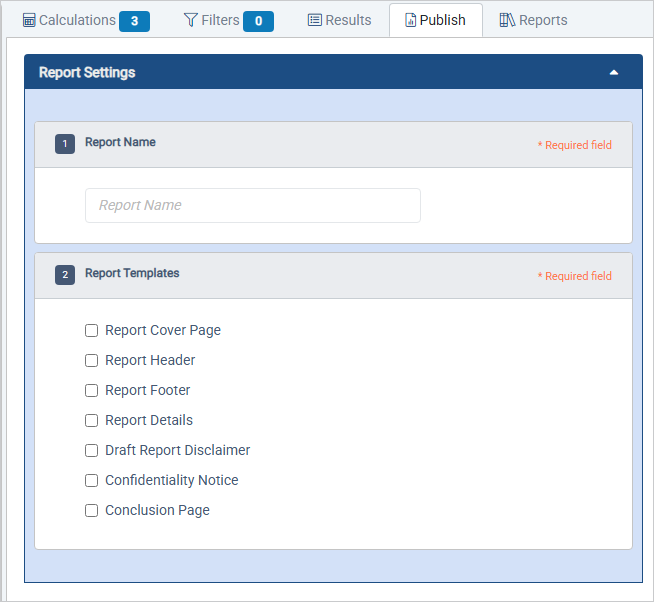
Report Settings
In this section, you enter a report title and choose which of the report templates you would like to include. (To edit the templates, go to Admin > Report Templates).
Page Layout section
This is where you decide how many calculations to include in the report and how they will be arranged on the page. First, choose the page orientation which can be either portrait or landscape. This will determine what options are available for the layout.
Additionally, the layout options will be limited by how many calculations are present in the compylation. For instance, this compylation has three calculations. Layouts with four or more calculations are grayed.
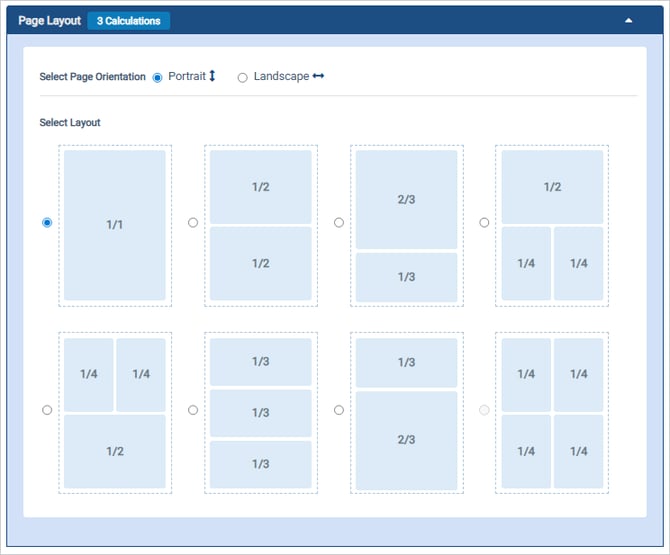
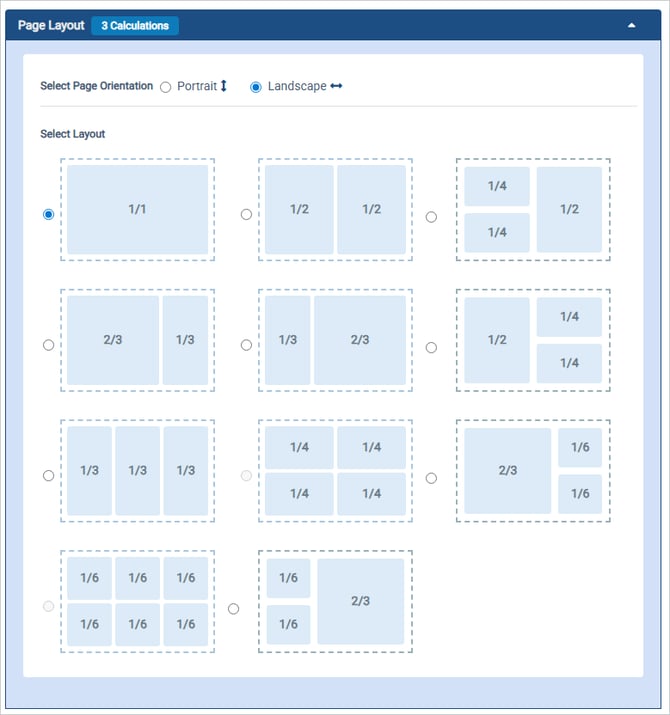
The page orientation and layout set the options for the next section, Calculations.
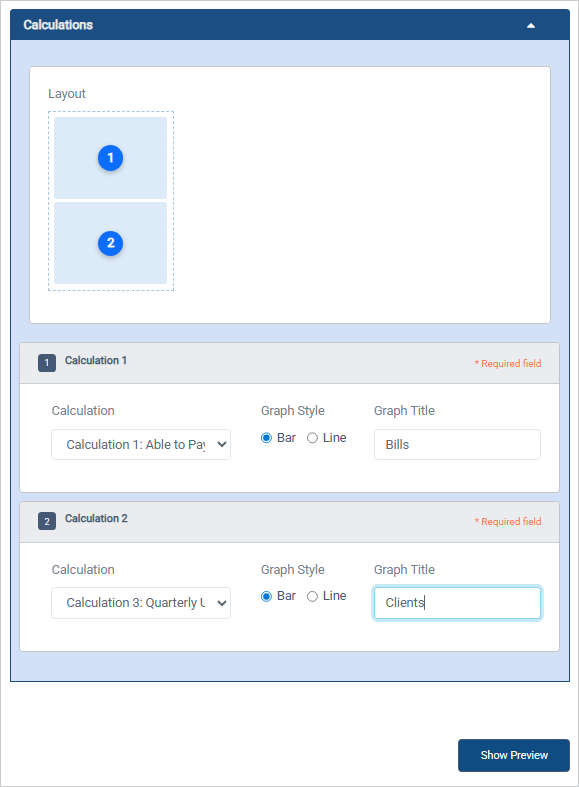
Calculations section
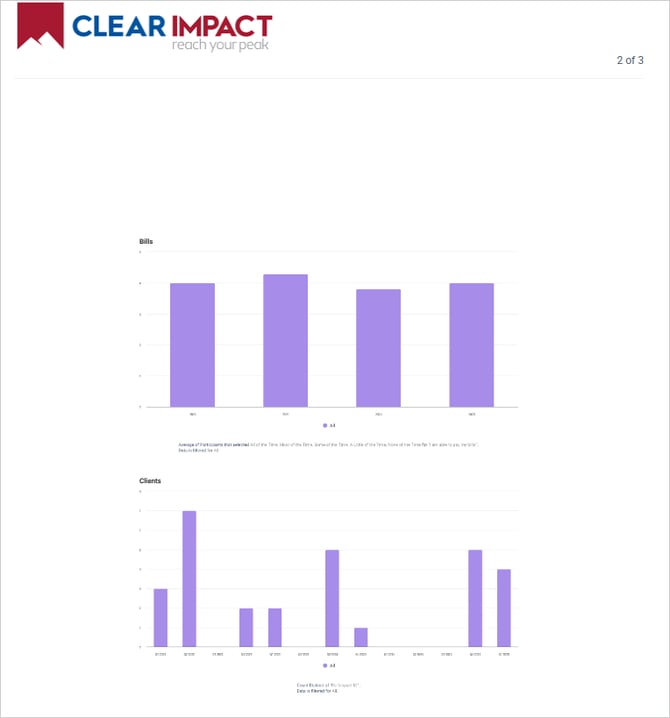
The top of this section shows the chosen layout and assigns a number for each calculation placeholder. Below, you select the calculation, choose the graph style, and enter a graph title which will be used to identify the calculation in the report.
Report Preview
Once the report settings, page layout, and calculations are set, click the Show Preview button to review your report and then publish it.
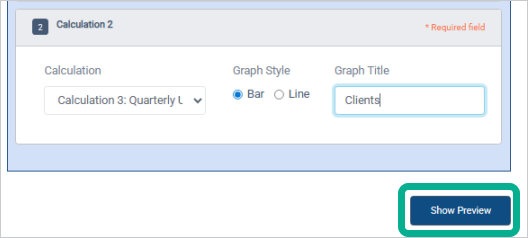
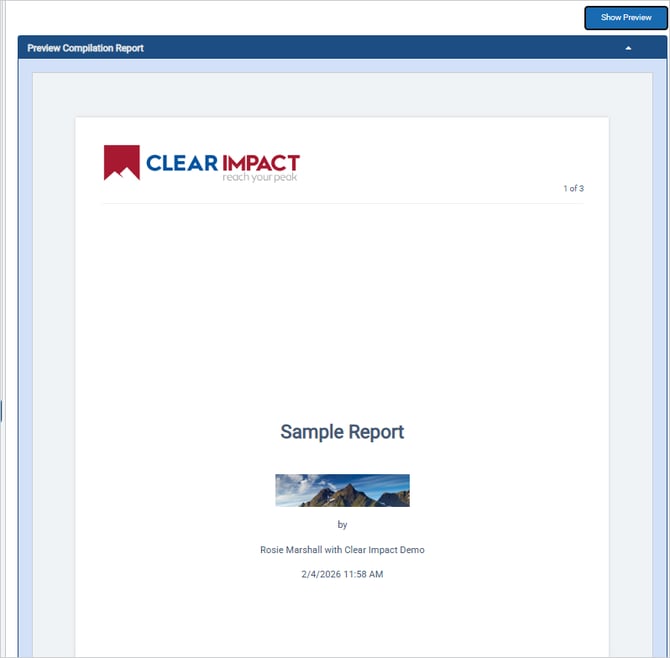
Please wait for the report preview to fully load. Then look over the results and, if the report looks good, click the Publish button found after the last report page.
Page 1 - Cover Page (optional)
Page 2 - Calculations
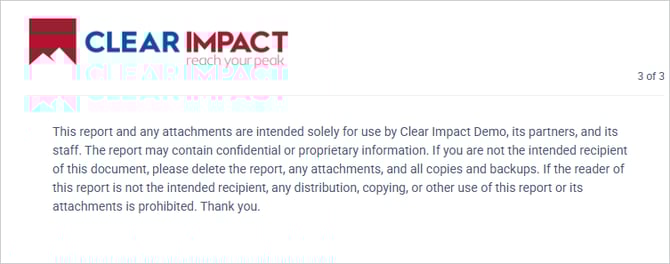
Page 3 - Confidentiality Notice (optional)
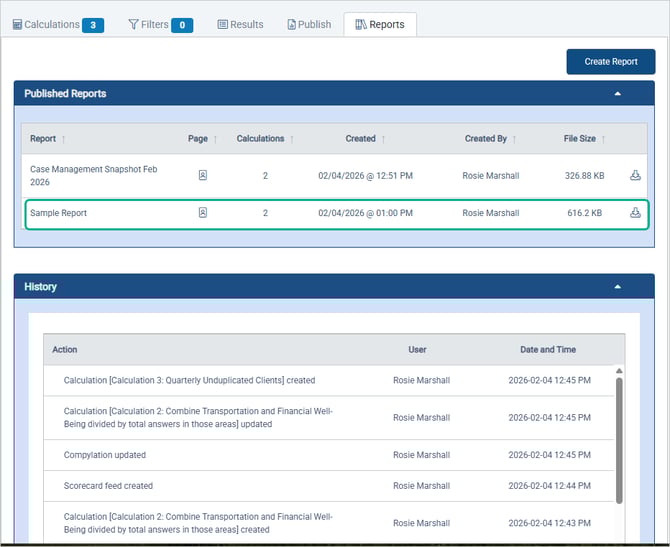
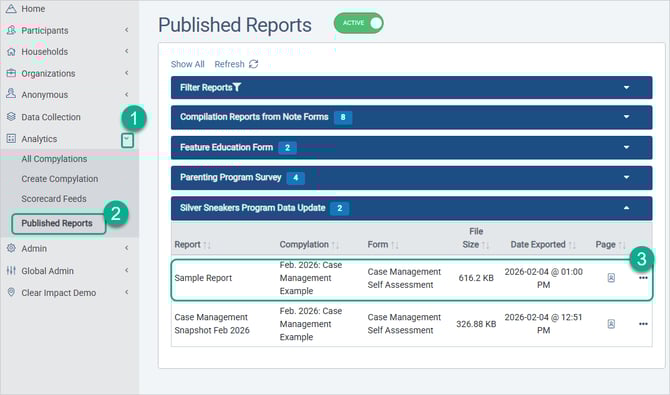
If the report is what you need and all of the calculation graphs have fully loaded, click the Publish button after the final report page. The saved report snapshot will appear on the Reports tab in this compylation and on the Analytics > Published Reports list.
A confirmation message will appear once the report saves. 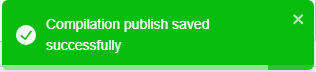
The saved report snapshot will appear on the Reports tab in this compylation and on the Analytics > Published Reports list.
Published Reports on the Reports tab
Published Reports on the Analytics > Published Reports list
Reports tab
The Reports tab shows the published reports created from this compylation and a history of changes made to the compylation over time.
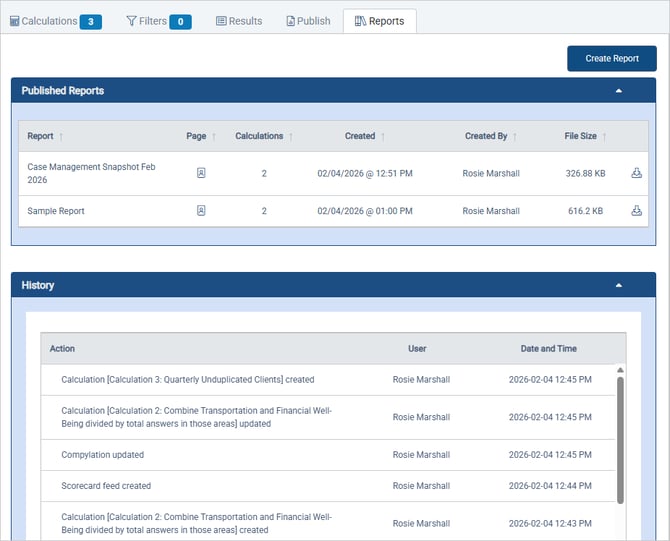
Sample Published Report