![Clear-Impact-Logo-Wide-Tagline-RGB.png]](https://support.clearimpact.com/hs-fs/hubfs/images/Clear-Impact-Logo-Wide-Tagline-RGB.png?height=40&name=Clear-Impact-Logo-Wide-Tagline-RGB.png)
Scorecard Dashboard Widgets
Scorecard dashboard widgets are user specific informational tiles that display for all users on the Scorecard Dashboard page. The widget row displays above the standard Scorecard dashboard panels and will adjust based on the instance the user is accessing.
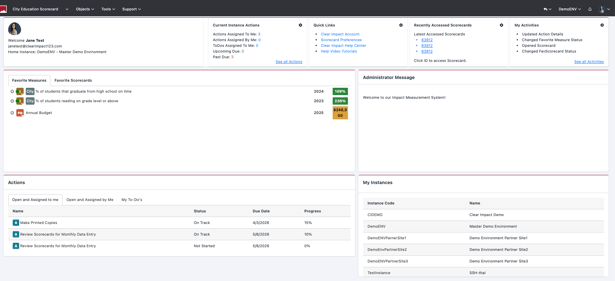
Each widget offers different information based on the user experience and their recent activity.

Scorecard Widget Types
Users that are not Instance Administrators will have access to five widgets that they can choose to display and to swap out as needed.
Welcome Widget
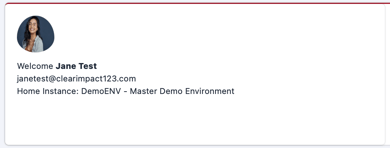
The "Welcome" widget is constant and shows the user the Profile Image, First and Last Name, Username (email) and Home Instance for the user based on the account that the user is logged in with. If the user is logged into an instance that is not their home instance then they will be shown the Current Instance they are logged into as well as their Home Instance.
Current Instance Actions Widget
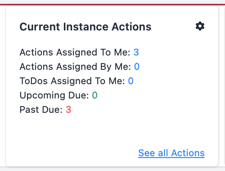
The "Current Instance Actions" widget provides the user with a summary of all actions that have been "Assigned By" or "Assigned To" the user as well as the status of assigned actions. The user also has a link to access the all-Actions search where they can then search further for Actions.
Quick Links Widget
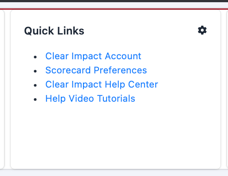
Users can choose to display the "Quick Links" widget to make shortcut links available to their Clear Impact Account, their Scorecard Preferences page, the Clear Impact Help Center and the Help Video Library.
Recently Accessed Scorecards Widget
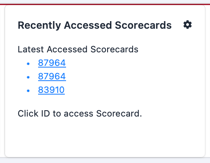
The Recently Accessed Scorecards widget provides users with shortcut links to the latest three scorecards they've accessed within the instance. The scorecards are referenced by ID and each displayed ID is a hyperlink directly to the scorecard.
 My Activities Widget
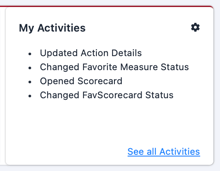
The "My Activities" widget gives the user a view of their more recent activities with a link to a full search screen related to the user's activities. All activities are specific to the current instance the user is accessing.
Recent Updated Data Widget
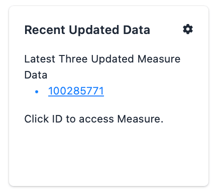
The "Recent Updated Data" widget provides the user with access to the three most recent measures that they have entered data into for the current instance they are logged into. The measures are referenced by ID and the displayed IDs are hyperlinks that the user can click to navigate directly to each measure.
Usage Widget (Instance Admin Only)
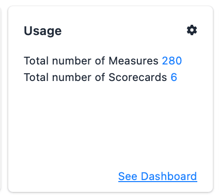
The "Usage" widget shows the total number of Measures and total number of Scorecards that are currently being used by the instance. The Instance Administrator is also provided with the "See Dashboard" shortcut link to the Administrator > Instance Dashboard where they can see more instance usage information.
Users/Measure Stats Widget (Instance Admin Only)
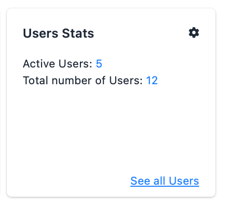
The "User/Measure Stats" widget provides the Instance Administrator with a preview of the number of licensed Users or Measures that are being used compared to the subscription limits. Instance Administrators are also provided with a link to access the full User or Measure list depending on the subscription type
Clear Impact Announcement Widget (Displays to all users)
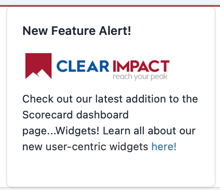
The "Clear Impact Announcement" widget displays important messages from Clear Impact related to feature releases and need-to-know user info. The widget will contain a short message with links to additional details where the users can learn more.

Switching Widgets
Users can switch out the widgets that are displaying on the Scorecard dashboard page by clicking the gear icon that appears in the upper right hand corner of each widget tile. Once the gear icon is clicked, the "Select Widget" modal will appear and the user can click on the widget they would like to display.