![Clear-Impact-Logo-Wide-Tagline-RGB.png]](https://support.clearimpact.com/hs-fs/hubfs/images/Clear-Impact-Logo-Wide-Tagline-RGB.png?height=40&name=Clear-Impact-Logo-Wide-Tagline-RGB.png)
What is Showcase? What is it For?
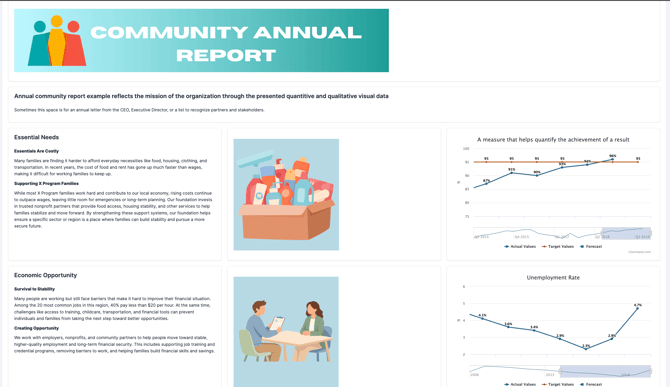
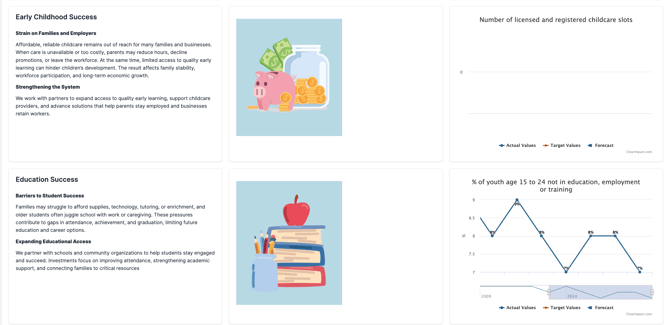
Showcase is a dynamic tool designed to help users tell their story of impact through customized, shareable dashboards made accessible with embedded links.
With the Showcase module, users can pull together a variety of information from various sources through the configurable interface of the dashboard pages. The following data sources are available for users to draw data from -
- Data graphs from measures
- Broad comparative data from external sources like the United Nations and City Health
- Compyle data graphs for deeper insights
- Customized panels with links, attachments, videos, and key messages
- Publish and share dashboards with anyone in a simple, read-only format using a unique link.
With Showcase dashboards, organizations can turn their data into a clear and compelling narrative.
Getting to Showcase
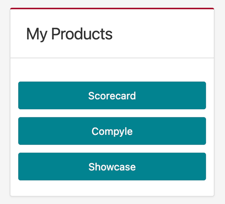
Users with Showcase access will see “Showcase” listed on the Control homepage, in the center column under “My Products”.
Accessing Existing Dashboards
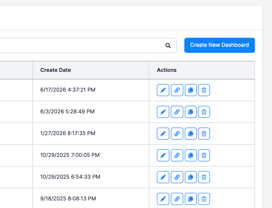
When logging into Showcase, users will be taken to the Showcase homepage which has a list of existing dashboards created for the instance. The user can use the icons under the “Actions” column to perform one of three functions for each listed dashboard -
- Delete (garbage can icon)
- Copy (double image icon)
- Edit (pencil icon)
- Access the embed link for (link icon)
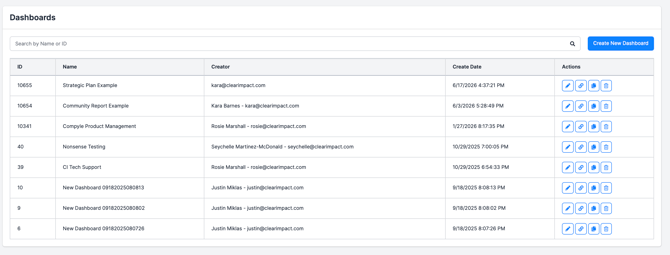
Users also have the ability to create a new dashboard by clicking the “Create New Dashboard” button.
Creating a New Dashboard
Dashboard pages are composed of rows that can have one or multiple widgets displaying in each row. In order to start a new dashboard the user will click the “Create New Dashboard” button in the upper right hand corner of the Showcase Homepage.↗ン
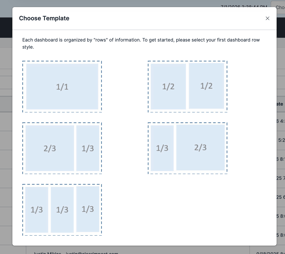
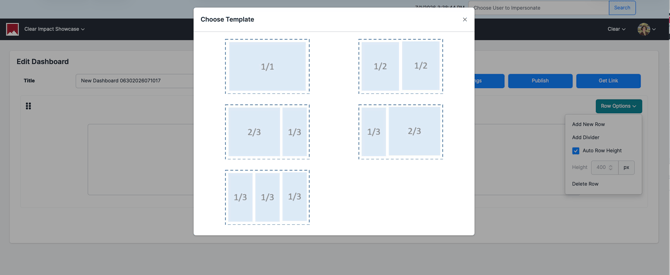
The user can then select the style of row they would like to start with from the” Choose Template” page.
Once the user has selected the row type they would like to begin with, the use will be taken to the edit screen for their new dashboard. At the top of the dashboard “Edit” screen the user will see general options available for the dashboard.
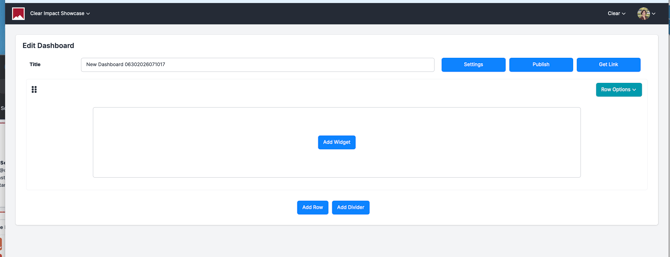
- Settings
- The user can update the title of the dashboard at any time. This is the title that will display in the Dashboard list on the Showcase homepage but will not display in the actual dashboard embedded view.
-
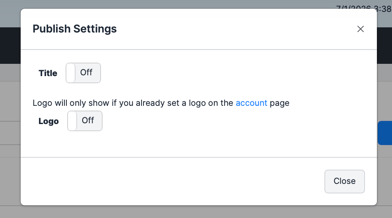
Options to activate and display on embed
-
Title
- Logo
- Logo will only display logos set in the Details page in Control
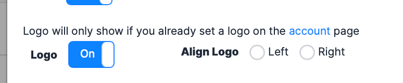
- Logo can be aligned Left or Right
-
- Publish
- The “Logo” option for a dashboard will pull the logo loaded in Control for the instance and will display on the embedded dashboard page.
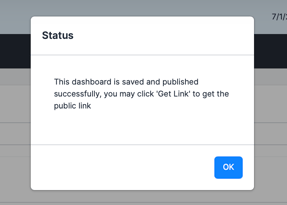
-
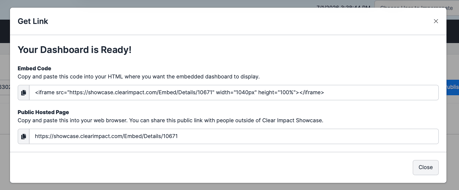
Get Link (Embedded Links available for sharing)
- The “Get Link” option will provide the user with the iframe embed link as well as the shareable embed link. This is how the
Row Options
Adding Rows and Dividers to Dashboards
Adding Rows
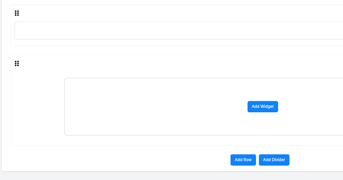
The user can select the “Add Widget” button displaying in any row panel to choose the type of widget they would like to add.
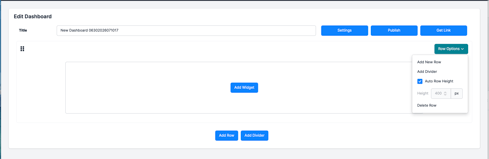
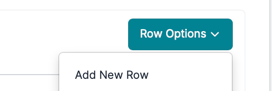
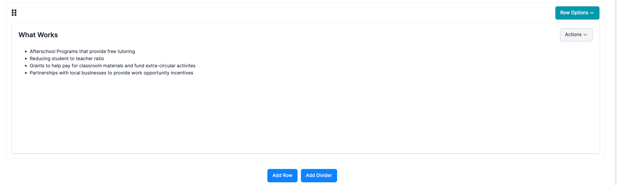
Each row has a “Row Options” dropdown available to the user in the upper right hand corner of the row.
The “Row Options” menu gives the user access to the following options -
- Add a New Row
- Row will be added below the selected row
- Add Divider
- Divider will be added below the row from which the user is adding the divider
- Auto Row Height
- User can adjust row height, set to 400px by default
- Delete Row
- User can delete row at any time using the “Delete Row” option
.
Once a user has added more than one row, they can use the 6 dot grid icon at the upper left corner of the row to reposition the row within the dashboard.
Adding Dividers
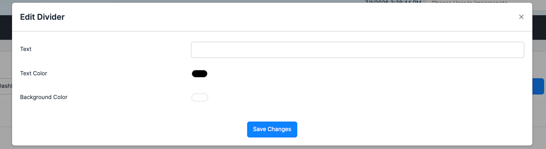
Users can add one or more dividers to their dashboard at any time by clicking the “Add Divider” under the row Options for each row

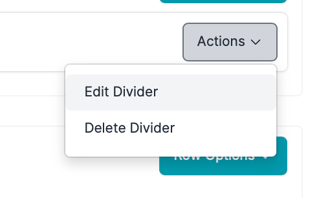
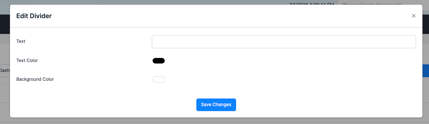
Once “Add Divider” is selected the page will populate a divider row into the bottom of the dashboard and the user can customize the divider text, text color and divider background color. The user can also drag the divider to display in any position on the page by clicking on the drag icon in the upper left corner of the divider row and dragging it up and down within the dashboard page.
Adding Widgets to Dashboards
What are Widgets?
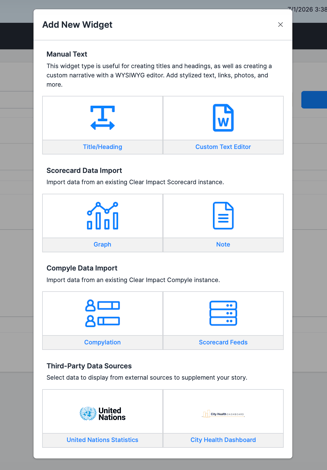
Widgets are content boxes that users can add to any row that will allow users to customize the content displaying within the dashboard pages. User can select the widget that best fits their content needs from a variety of widget types.
Widget Types
The widget type options consist of:
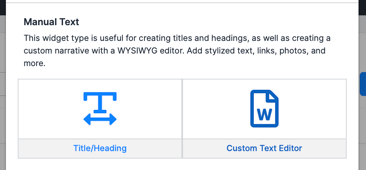
- Manual Text
- Add stylized text, links, photos, and more
- Create titles and headings, as well as creating a custom narrative with a WYSIWYG editor
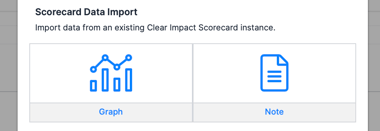
- Scorecard Data Import
- Import data from an existing Clear Impact Scorecard instance
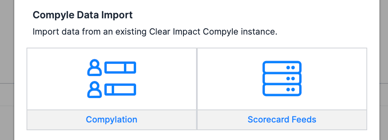
- Compyle Data Import
- Import data from an existing Clear Impact Compyle instance
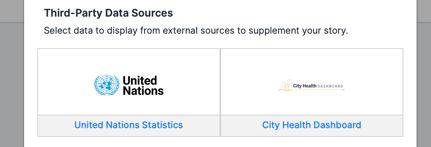
- Third-Party Data Sources
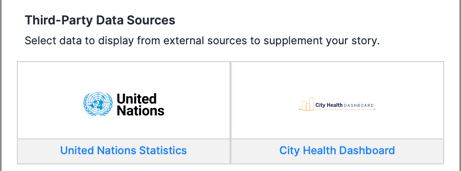
- Option #1: United Nations Statistics
- Data sets are filterable by geographic, date and demographic data
- Shows United Nation’s Sustainable Development Goals and associated Outcomes, Indicators and Metrics
- Option #2: City Health Dashboard
- Data sets are filterable by geographic and demographic data
- Shows City Health Dashboard key metrics and associated data sets
- Option #1: United Nations Statistics
- Select data to display from external sources third party sources
Manual Text
The Manual Text widget type can be used to create titles and headings, as well as a custom text narrative with a WYSIWYG editor.
Title/Heading
Users can choose the Title/Heading widget to add custom titles to a dashboard choosing from a predefined list of text-style option
The “Text” entry field will allow users to type the title text that they want to display and the preview section will show them a sample of the stylized text.
Custom Text Editor
The Custom Text Editor widget type allows users to add custom narratives to rows within their dashboards. Custom Text widgets support copy and pasted images, links and videos.
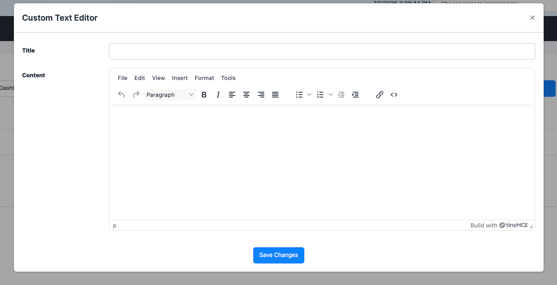
Various formatting commands are available for users to customize text through the Custom Text Editor
Stylizing options include
- Headings
- Inline settings
- Block settings
- Alignment settings
Images, videos and links can also be copy and pasted into the Custom Text Editor widget.
Scorecard Data Import
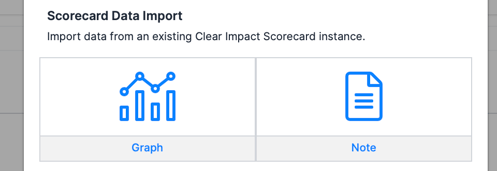
The Scorecard Data Import tool can be used to import graphs or notes from Measures within an existing Clear Impact Scorecard instance.
Graph (Measures)
Users can choose the measure they would like to draw into the widget using Scorecard Data Import “Graph” widget options.
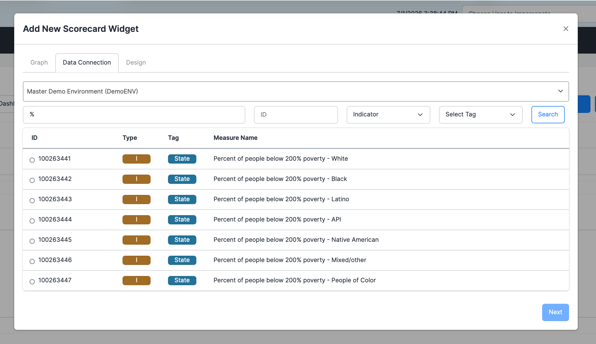
Users can search for measures by Name, ID, Measure Type and Tag or they can select an option from the Measure Type dropdown and click search to see a general list of all of those measures types.
The user will then select the selector indicator to the left of the measure name to choose the measure with the graph they want to load.
The user can then apply additional setting including -
- Graph/Chart Type
- User can choose between Line Graph, Column Graph, Bar Graph
- Graph Title
- Users can update Graph Title as needed (updated title will only display in Showcase view)
- Comparison
- Users can check the Comparison option to show the comparison view of the measure
- Optional Properties to Display
- Target Value, Forecast Values, Data Sources, Data Labels
- Previous Time Periods
- Users can determine how many time periods to display (updated time periods will only display in Showcase view)
- Y-Axis
- Users can determine the min and max values for the Y-axis (updated Y-axis values will only display in Showcase view)
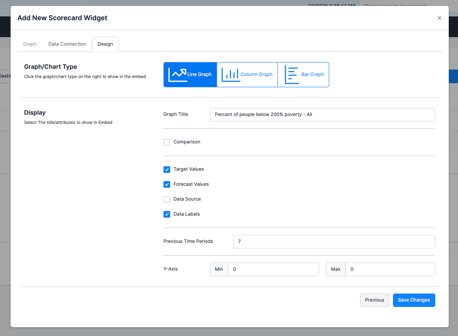
Some settings will not be available when the Comparison option is selected.
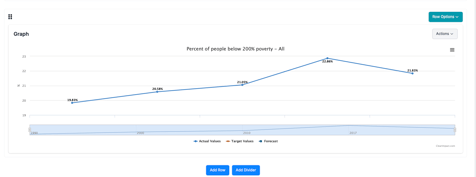
Once loaded the measure graph will display in the full frame of the widget where it has been loaded.
Notes (Containers and Measures)
Users can choose to search for Measure or Container level notes that hey would like to draw into the widget using Scorecard Data Import “Notes” widget options.
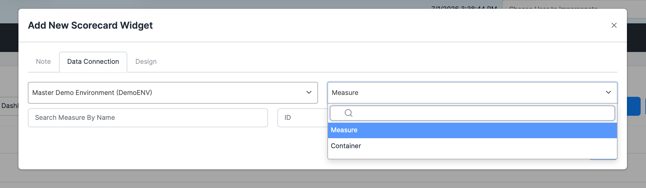
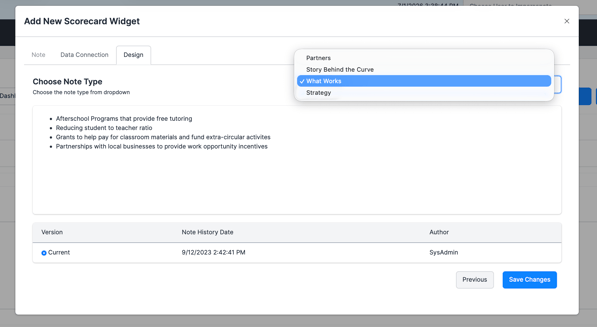
Once the measure or container is selected, the user can choose the Note Type would like to load into the widget.
Users can also select the version of the Note Type that they would like to display in the measure.
Compyle Data Import
The Compyle Data Import option allows users to draw in the data graph related to Compylations or Scorecard Feeds from existing Compyle instances.
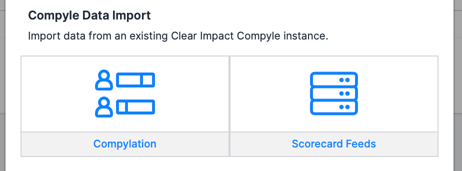
Compylation
Users can use the Compylation widget type to draw Compylation graphs into their widgets.
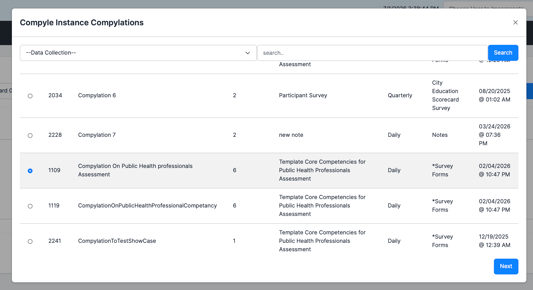
Users can filter the list by Data Collection and/or they can search for specific Compylations by name.The user will then select the selector indicator to the left of the measure name to choose the measure with the graph they want to load and click the “Next” button.
The user will then be able to choose the specific Calculations from within a Compylation to load into the widget
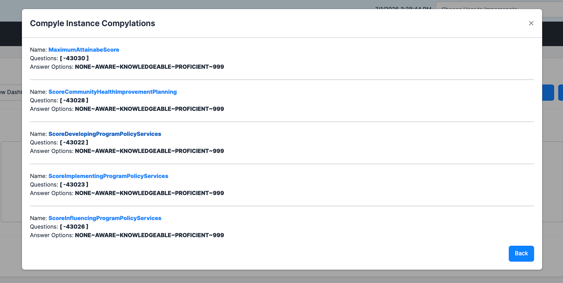
The Compylation graph will display in the full frame of the widget it was selected for.
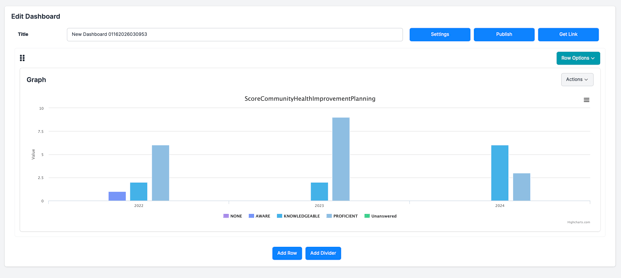
Scorecard Feeds
Users can use the Scorecard Feeds widget type to draw Scorecard Feeds graphs into their widgets.
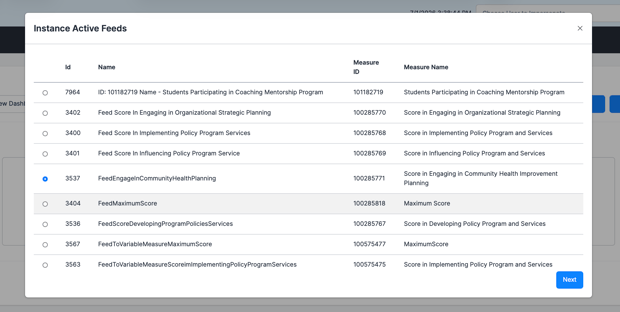
When selecting the Scorecard Feeds widget type the user will be taken to a list of Active Scorecard feeds to choose from.
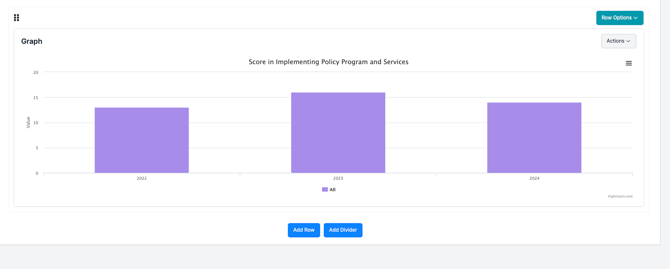
Once loaded the Scorecard Feed graph will display in the full width of the widget it was selected for.
Third-Party Data Sources
The Third-Party Data Sources widget type allows users to draw data to display in their dashboard from external data sources.
United Nations Statistics
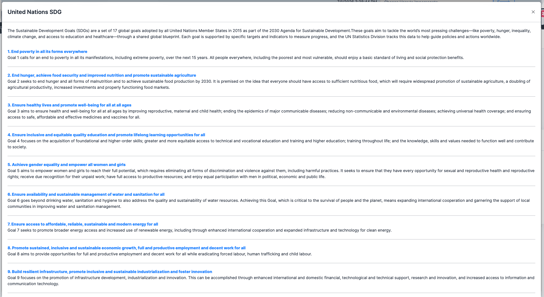
The United Nations Statistics provides access to the United Nation’s Sustainable Development Goals and associated Outcomes, Indicators and Metrics. Users will start by selecting a specific Development Goal.
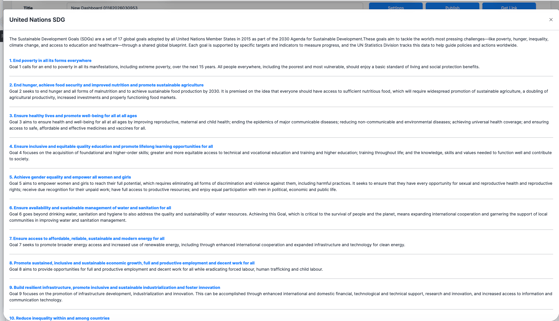
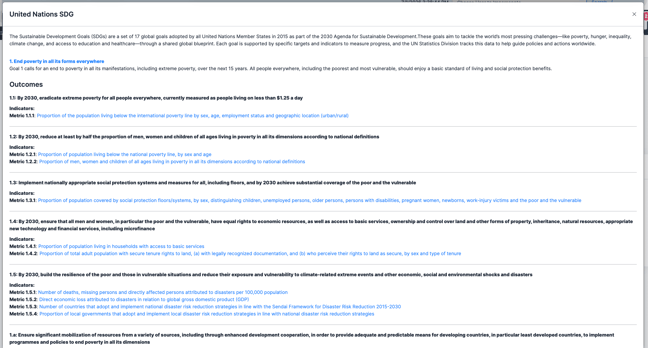
They can then choose a specific metric organized under the Outcomes of the Goal.
The user will then select a sub goal related to the metric.
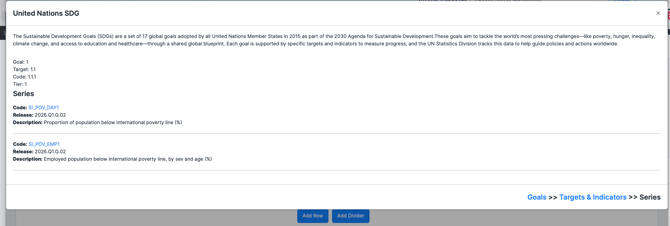
Once the sub-goal is selected users can apply filters including -
- Geo Area
- Start Year and End Year
- Sex
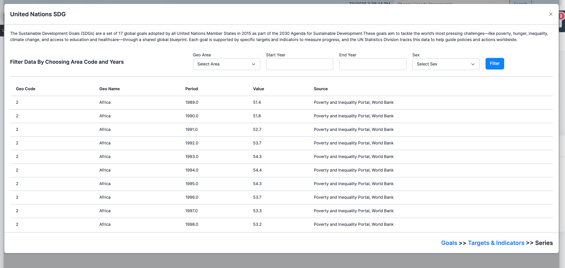
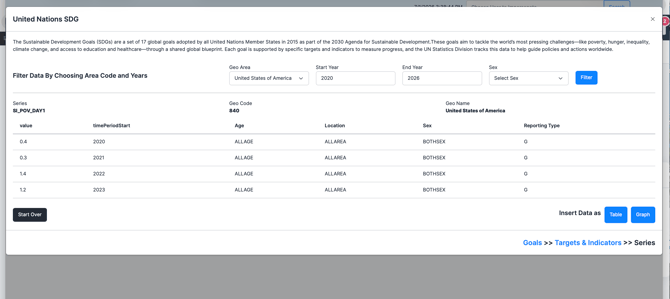
When the filter criteria is applied the user can then use the “Table” or “Graph” button at the bottom right corner of the screen to determine how they would like the data to display.
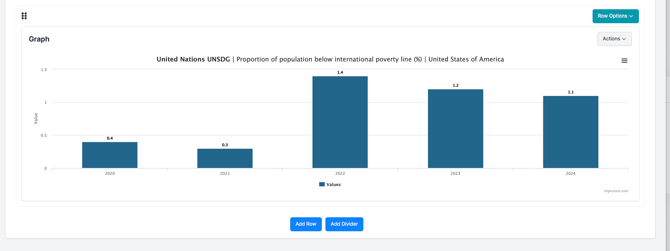
If the “Graph” option is selected then the user can choose if they want to display at Line graph or Bar chart.
Once loaded the Scorecard Feed graph will display in the full width of the widget it was selected for.
City Health Dashboard
The City Health Dashboard widget type makes key metrics and associated data sets available for users to show comparative data from cities across the US.
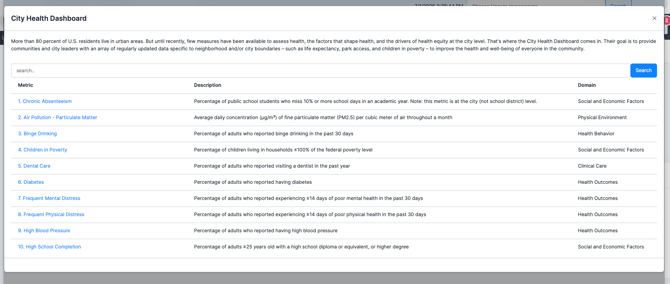
When selecting the City Health Dashboard users can search for metrics by term.
They can then filter the dataset related to the metric using the State and Geo Level filter criteria.
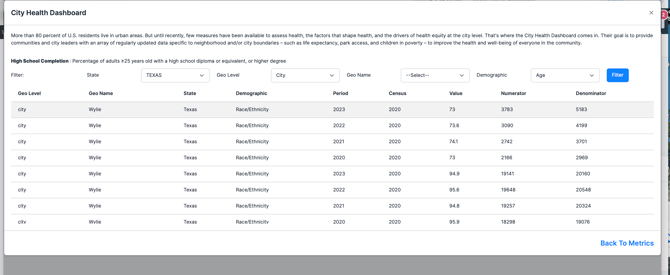
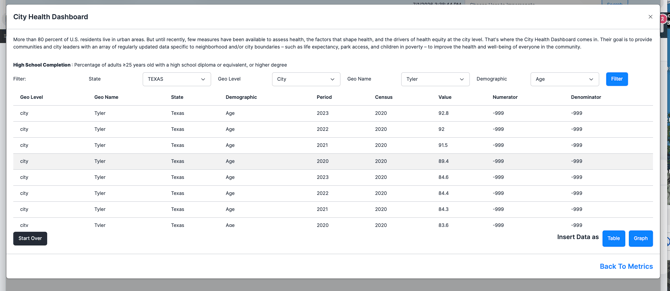
Once the state and geo level criteria has been applied the users will be able to filter further by Geo Name and specific demographic criteria that is available for the data set.
The user will then be able to choose if they would like to display the data as table or graph
If the “Graph” option is selected then the user can choose if they want to display at Line graph or Bar chart.
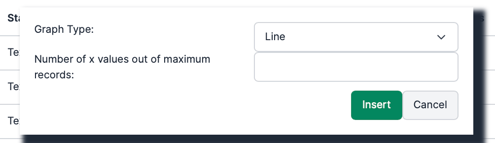
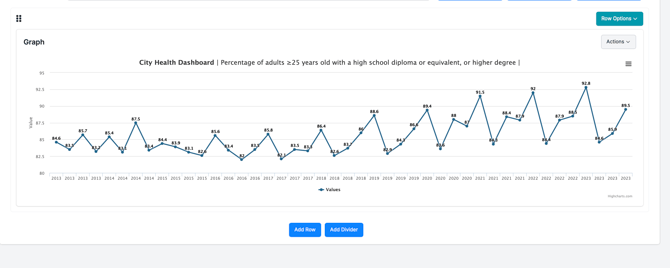
Once loaded the Scorecard Feed graph will display in the full width of the widget it was selected for.
Sharing Dashboards
Users can share the instance dashboards with others, including non-system users, at any time through the shareable embed link available by clicking on the “Get Link” button at the top of the dashboard page and selecting either Embed Code (for iframes) or the Public Hosted Page (shareable URL)

Embed links are also available in the Showcase homepage Access under the “Actions” column by clicking on the hyperlink icon.

Links shared with external users will take them directly to the embedded dashboard page and does not require login to access.